Get Apple TestFlight: Download the official, free TestFlight app from the App Store on your iPhone. TestFlight is Apple's official platform for distributing pre-release software securely. Make sure your device is updated to modern system software (iOS 27+, iPadOS 27+, macOS 27+, watchOS 27+, or visionOS 27+).
Tap "Join Beta" on CodeWing: Return to this page and tap the Join Beta button above. Safari will trigger the official TestFlight invitation link. If prompted with "Open in TestFlight?", tap Open.
Accept Developer Invitation: TestFlight will launch and display the latest build notes and tester information for MikroTik Back To Home. Tap Accept to register your Apple Account into the beta testing group.
Install & Start Testing: Tap Install (or Update) to download the build directly to your device. You'll receive instant notifications inside TestFlight whenever MikroTik pushes new builds, bug fixes, or feature updates.
Essential Beta Testing Tips:
Apple 10,000 Tester Cap: Apple limits public TestFlight groups to 10,000 active users. If slots are currently full, tap Get Slot Alerts above to be notified the second a slot opens.
100% Free Sandbox Purchases: In-app purchases, subscriptions, and pro features in TestFlight are simulated in Apple's sandbox environment at $0.00 — your Apple Account is never billed.
90-Day Build Lifespan: Each build expires after 90 days. Developers periodically push updates that reset the countdown, and your personal app data is preserved.
Revert to App Store Anytime: You can switch back to the public release at any time by redownloading MikroTik Back To Home directly from the regular App Store.
About MikroTik Back To Home
Requires MikroTik™ router with ARM, ARM64, or TILE architecture running RouterOS 7.12 or later. Read more at https://mt.lv/bth
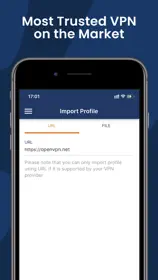
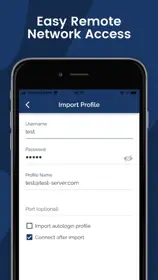
Back To Home configures your MikroTik™ router for a secure VPN access from anywhere in the world to your router and network, even if your router does not have a public IP address, is behind NAT or Firewall.
How do I join the MikroTik Back To Home TestFlight beta on iOS?
First, download Apple's official TestFlight app from the App Store on your iPhone. Then return to this page and tap the "Join Beta" button above. Your device will automatically open TestFlight and prompt you to accept the developer's beta invitation. Tap "Accept" and then "Install" to start testing MikroTik Back To Home. If it says "This beta is full", tap "Get Slot Alerts" to be notified instantly when a slot opens.
Is testing MikroTik Back To Home on TestFlight safe and free?
Yes, testing MikroTik Back To Home is 100% safe and free. Every public TestFlight build must strictly follow Apple's App Review Guidelines and passes Apple's automated and manual security checks before public invitation links can be distributed. All betas operate within Apple's secure operating system sandbox and cannot access your device data without explicit permission. The beta is developed and maintained by MikroTik.
Do in-app purchases or subscriptions cost real money during TestFlight beta testing?
No. In TestFlight, Apple connects all transactions to its free Sandbox environment. Any in-app purchase, pro feature tier, or subscription inside MikroTik Back To Home will display "[Environment: Sandbox]" and costs $0.00. Your Apple Account or credit card will never be billed for purchases made within a TestFlight beta build.
Does MikroTik Back To Home work on iOS 27 and the latest iPhone models?
Yes, MikroTik Back To Home is fully compatible with iOS 27 and iOS 26 across modern iPhones, including iPhone 18, 17, 16, 15, and 14 series. It supports modern iOS 27 capabilities including Siri AI, Dynamic Island, Lock Screen widgets, StandBy mode, and Apple Intelligence where applicable.
What should I do if the MikroTik Back To Home TestFlight beta says "This beta is full"?
Apple enforces a strict cap of 10,000 public testers per TestFlight app. Popular betas fill up quickly, but spots reopen regularly because Apple automatically purges inactive testers, and MikroTik frequently clears inactive seats before dropping new beta builds. Tap the "Get Slot Alerts" button on this page to receive instant Email and Telegram alerts from CodeWing the moment an open slot is detected. You can also discover trending alternatives in the Utilities category.
Will installing the beta replace my current App Store version of MikroTik Back To Home, and will I lose my data?
Installing the TestFlight beta will replace the App Store version on your iPhone, but all your local app data, documents, logins, and configurations are safely preserved. If you ever want to switch back to the stable public release, you can simply redownload MikroTik Back To Home directly from the App Store at any time without losing your data.
How long does a TestFlight beta build last before it expires?
Each TestFlight build has a maximum lifespan of 90 days from the day the developer uploaded it to Apple. You can see the countdown days directly beneath MikroTik Back To Home's title in your TestFlight app. Developers regularly release new builds with improvements, which automatically resets the 90-day timer so your testing is uninterrupted.
How do I send feedback or report bugs for MikroTik Back To Home?
You can send feedback directly to MikroTik by taking a screenshot while using MikroTik Back To Home and tapping "Share Beta Feedback", or by opening TestFlight, tapping MikroTik Back To Home, and selecting "Send Beta Feedback". You can include notes, screenshots, and system logs to help the developer fix issues before the official App Store launch.