Portable emulation on Apple hardware has entered a new phase of maturity with advanced software pipelines. If you want a unified launcher that turns your iPhone into an all-in-one retro gaming rig, you need to check out the TestFlight build for sumee!
We spent the last week pushing this beta through its paces on modern Apple silicon. This hands-on review breaks down its emulation performance, big-screen capabilities, and how you can grab an invite.
sumee! — Quick Specifications
Developer: Getzemani Cruz Garcia
About sumee!
Developed by Getzemani Cruz Garcia, sumee! is designed to centralize classic gaming systems into a single, polished frontend on iOS. Instead of jumping between disparate apps for each platform, you get a unified library manager.
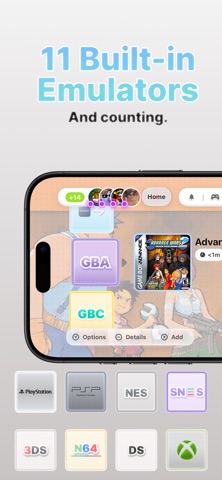
The app supports compatible files for heavy-hitting retro platforms ranging from the Nintendo GameCube and 3DS down to the Sega Genesis and original PlayStation. Users import their own legally owned ROMs and BIOS files to populate the library.
Beyond standard handheld operation, the utility features a dedicated Dock Mode engineered for external displays. You can output video via HDMI or AirPlay while pairing a physical Bluetooth controller for a couch-console experience.
Standout Features & What's New in this Build
This TestFlight release packs a surprising number of advanced features into its frontend. Here are the core highlights currently available to testers in the active build:
- Dock Mode & External Displays: Seamlessly switch to big-screen HDMI or AirPlay output with console-inspired layouts.
- RetroAchievements Integration: Unlock badges and track your progress across supported classic systems.
- PictoMee Social Space: An integrated community feature allowing users to share posts, user profiles, and direct messages.
- Extensive Core Support: Unified loading for GameCube, 3DS, DS/DSi, GBA, NES, SNES, N64, PSP, PSX, and Sega Genesis.
- Local Multiplayer & Link Support: Split-screen capabilities for two players alongside Wi-Fi local play and GBA Link connectivity.
The addition of PictoMee gives the app a unique community dimension, though developers note these social spaces are intended strictly for users aged 16 and older. Content safety tools are built right into the profile settings.
Performance tools within the settings menu allow fine-tuning of rendering parameters. This gives power users granular control over thermal throttling and frame pacing during intensive 3D sessions.

Hands-On Impressions: Performance, Battery, and Thermals
Testing this build on an iPhone 15 Pro reveals remarkable efficiency, though heavy GameCube and 3DS emulation will inevitably draw down your battery. Thermal headroom remains stable during standard 16-bit sessions, but expect the chassis to warm up when pushing high-resolution configurations to an external monitor.
Touch responsiveness is snappy, though mapping a physical controller transforms the experience entirely. Frame rates hold steady on ProMotion displays, though minor audio stuttering occasionally surfaces during shader-heavy transitions.
"Our goal was to bridge the gap between portable retro collection management and true living-room console play without sacrificing iOS system efficiency." — Getzemani Cruz Garcia
The interface design borrows heavily from classic handheld aesthetics while maintaining modern touch targets. Navigating through heavy asset libraries feels snappy thanks to optimized local caching.
System Requirements & Requested Permissions
To run sumee! smoothly, your Apple device must be running iOS 15.0 or later. While the app installs on older hardware, optimal performance for GameCube and 3DS emulation requires modern A-series processors.
The app requests standard permissions including Local Network access for multiplayer features and optional notifications for community alerts. Apple's strict sandboxing ensures your imported game files remain safely isolated within the app container.
Storage requirements scale directly with your imported library size. Ensure you have several gigabytes free if you plan to store disc-based titles locally on your device.
Pros & Cons: Beta Impressions
✓ The Highs (What We Love)
- Unified Library: Manages dozens of classic systems in one clean interface.
- Dock Mode: Flawless HDMI and AirPlay scaling for big-screen play.
- RetroAchievements: Adds modern progression tracking to classic titles.
✕ Beta Caveats (Room for Polish)
- Thermal Load: Demanding 3D systems drain battery life quickly.
- Audio Glitches: Occasional pops during heavy shader compilation.
- Slot Limits: Apple's TestFlight capacity restricts immediate access.
Current TestFlight Slot Situation & Availability
Apple caps public TestFlight betas at 10,000 active participants per app ID. Because interest in high-end multi-console emulators on iOS is massive, slots tend to fill up within hours of a major build drop.
If the link reports that the developer isn't accepting new testers, do not panic. Inactive accounts get pruned automatically by the system every few weeks, freeing up seats for eager newcomers.
Step-by-Step TestFlight Installation Guide
Getting up and running with the beta build takes less than two minutes if slots are currently open. Follow these steps to secure your copy right now:
1. Open the App Store on your iPhone or iPad and download the official Apple TestFlight application if you haven't already.
2. Tap the official TestFlight invitation link provided on this page to open the registration prompt directly on your device.
3. Review the developer's release notes and tap "Accept" to join the public beta program.
4. Tap "Install" to download sumee! onto your iOS home screen alongside your stable applications.
5. Launch the app, import your legally sourced files, and submit bug reports via the TestFlight feedback tool if you encounter crashes.
Frequently Asked Questions
Is sumee! safe to install via TestFlight?
Yes. All TestFlight applications must pass Apple's automated screening guidelines and operate within strict iOS privacy sandboxes.
What should I do if the sumee! beta is full?
Bookmark this Codewing page and check back during off-peak hours when Apple purges inactive tester tokens from the developer dashboard.
Will installing this beta overwrite my App Store version or delete save data?
TestFlight builds operate as standalone preview packages, though local save files should always be backed up externally as a precaution.
How long do TestFlight beta invitations and builds last?
Each individual beta build expires 90 days from its upload date, requiring regular updates through the TestFlight app to maintain access.
Are in-app purchases free during TestFlight beta testing?
Yes. Apple's TestFlight environment uses a simulated sandbox billing system where all transactions are completely free of charge.
Final Editorial Verdict
sumee! successfully unifies multi-system emulation into an exceptionally polished iOS package. While demanding hardware configurations will test your battery limits, the dock mode and achievement integration make it an essential download for retro enthusiasts.
Developer Support & Official Resources
Stay updated on patch notes, maintenance windows, and feature roadmaps directly from the official developer channels.
Never miss an opening for sumee!.
Apple limits TestFlight betas to 10,000 testers, and this program is currently at capacity. CodeWings Plus continuously monitors slot availability 24/7 and sends you an instant alert the second a spot opens up.