
Blueye TestFlight Beta
Open now
Getting Started with the Blueye Beta


About Blueye
The Blueye app is the pilot station for Blueye underwater drones. Fly the Blueye X1, X3, X3 Ultra and X7 from your iPhone, iPad or Mac, and keep flying the earlier Blueye Pioneer and Pro.
PILOT
- Steer with the on-screen joysticks, or connect an Xbox, PlayStation or MFi game controller.
- Let the drone hold depth and heading for you, or keep station and altitude over the seabed with a DVL.
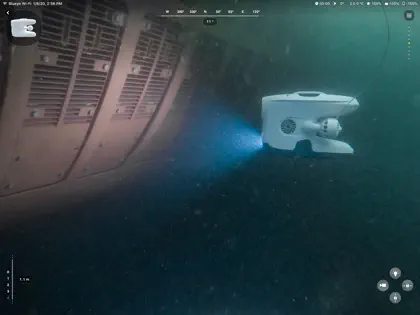
- Read depth, heading, pitch and roll, water temperature and battery level on top of the live video.
- Tune exposure, white balance, gain, color correction and the turbidity filter for the clearest picture.
RECORD
- Live video in Full HD from the X1, X3, Pioneer and Pro, and in 4K UHD with HDR and zoom from the X3 Ultra and X7.
- Record video and take photos on the drone, on a timer or by distance traveled, with telemetry overlays and voice commentary from your device's microphone.
- Download photos, videos and sonar recordings to your device, or move them to a USB drive in the drone.
- Live stream the dive to an RTMP server (beta).
NAVIGATE
- Follow the drone on the map with a Blueye GPS, DVL or USBL positioning system, mark points of interest, and plan and run semi-autonomous waypoint missions.
- Combine base maps and overlays, import your own offline maps (MBTiles), and use Kartverket depth data in Norwegian waters.
- Publish the drone's position and sonar to TAK clients such as ATAK and iTAK.
SONAR, PAYLOADS AND AI
- Multibeam sonar: live imaging, recording and playback, tilt control, and measurement of distances and areas in the sonar image.
- Guest port payloads: external cameras and lights, grippers and manipulators, DVL, scaling laser, water quality sensors and ultrasonic thickness gauges.
- On the X3 Ultra and X7, onboard computer vision draws object detection and segmentation overlays on the video, tracks the target you select, and measures detected objects with the scaling laser. Freeze the video to measure lengths and areas yourself.
LOG AND REPORT
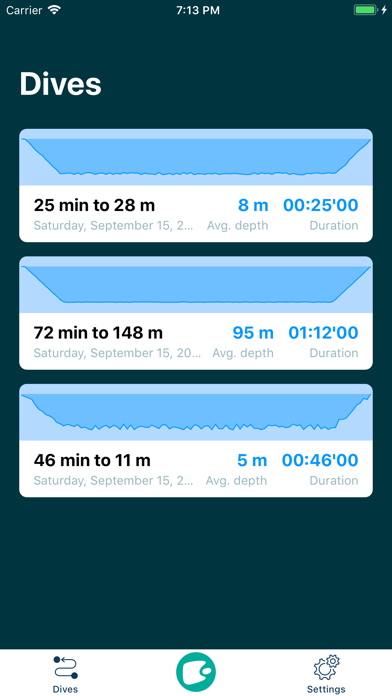
- Every dive is logged with its telemetry, media, points of interest and annotations. Review it afterwards and export Word or PDF inspection reports.
- Sign in to Blueye Cloud to sync dive logs, photos, videos and sonar recordings to your organization.
KEEP IT RUNNING
- Update the drone's Blunux software from the app, check diagnostics and contact support without leaving the app.
- Several devices can connect to one drone: one pilots while the others watch the live video.
- No drone at hand? Demo mode lets you explore the app.
The app is available in English, Norwegian, German, Spanish, French, Japanese, Dutch, Portuguese and Ukrainian. Connect your iPhone, iPad or Mac to the Blueye surface unit's Wi-Fi and you are ready to dive.
Visit www.blueyerobotics.com for more about Blueye and our drones.
Latest App Store version: 6.6.0 · 11/11/2026
What's new, from the App Store
- Add a Start other button above Start diving to observe the video without taking control, operate the multibeam sonar or open the map. - Show where in the camera's full image you are zoomed in on the Blueye X3 Ultra and X7: while zoomed, a small map under the pitch and roll display marks the part on screen. The zoom notification shows the magnification, such as 2.5×, instead of a percentage. Pinching and panning with two fingers move the image with your fingers at every zoom. - Add support for the Reach Robotics Reach Alpha 5 manipulator arm. Tap the arm button in the dive view, or hold LB or RB and press View on the game controller, to move the arm with the sticks instead of the drone; hold X to deploy the arm and Y to stow it, while A and B keep switching auto depth and auto heading. - Connect a second game controller to work the gripper or manipulator arm while the first one flies the drone: its triggers open and close the gripper, its sticks move the arm without switching to arm mode, and its d-pad tilts the camera. The controller settings show both controllers. - Operate the gripper from a second device while another device flies the drone: choose Start other, then Operate…