Apple TestFlight is the premier testing ground for the Apple ecosystem. It enables indie creators and premier studios to distribute pre-release iOS, iPadOS, macOS, watchOS, and visionOS applications to real users before they launch publicly on the App Store. Whether you want to test upcoming game releases, test unreleased AI tools, or shape the features of your favorite apps, this comprehensive 2026 guide covers everything you need to know.
⚡ Quick Overview: The CodeWing Advantage
Apple does not host a public directory of open TestFlight betas. CodeWing (codewing.in) solves this by indexing over 17,600+ active TestFlight betas. On CodeWing, you can discover verified public invite links with live slot tracking, meaning you do not need a private invitation code or developer email to start testing.
Device & System Requirements (2026 Matrix)
Before installing TestFlight, confirm that your Apple device meets the modern operating system baseline:
- iPhone (iOS): iOS 16, iOS 17, iOS 18, or iOS 27+ on iPhone 11 series through iPhone 16 / Pro / Pro Max.
- iPad (iPadOS): iPadOS 16 or newer across iPad Pro (M1–M4), iPad Air, iPad Mini, and standard iPad.
- Mac (macOS): macOS Ventura, Sonoma, Sequoia, or Golden Gate on both Apple Silicon (M1/M2/M3/M4) and Intel Macs.
- Apple Vision Pro (visionOS): visionOS 1.0 or newer for spatial computing experiences.
- Apple Watch (watchOS): watchOS 9 or newer paired with an active iPhone.
- Apple Account (Apple ID): A standard personal Apple Account is required to authenticate TestFlight downloads.
Step 1: Download Apple TestFlight from the Official App Store
TestFlight is completely free and developed directly by Apple. It must be installed on your device prior to clicking any beta invitation links:
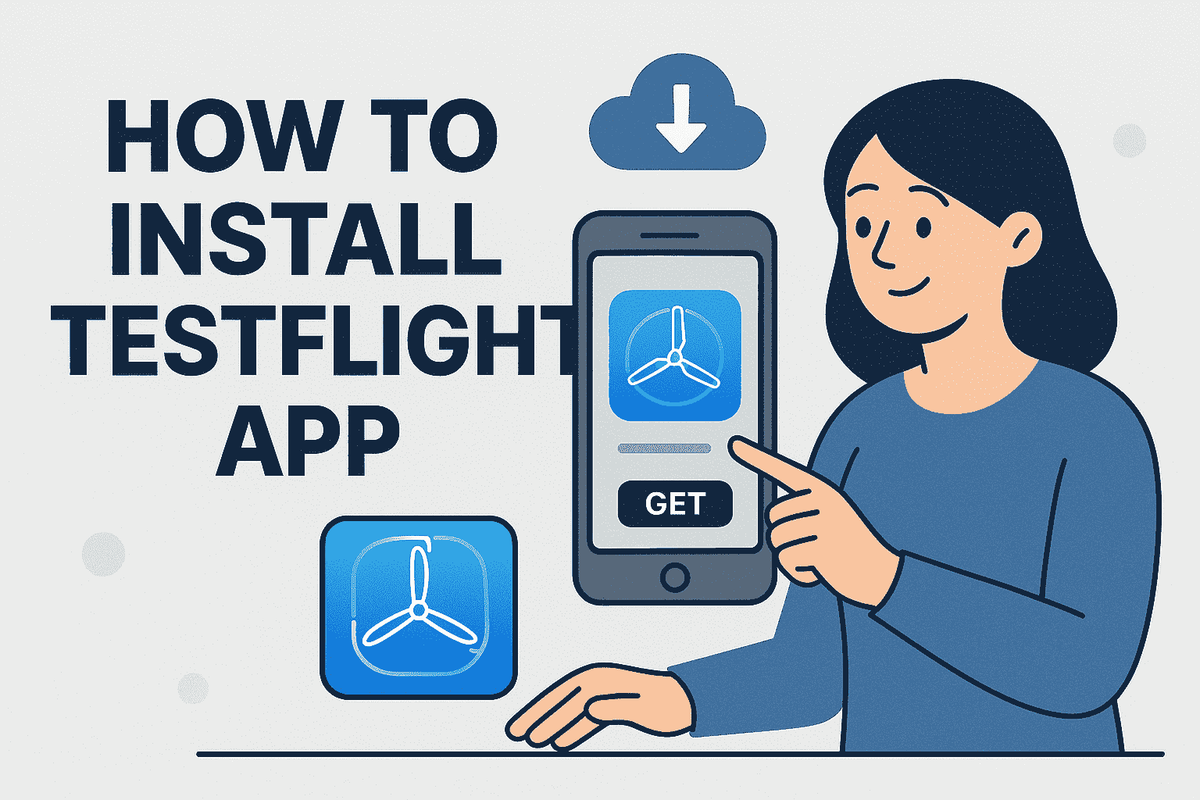
- Open the official App Store on your iPhone, iPad, or Mac.
- Tap the Search tab and type "TestFlight" (or visit the direct TestFlight App Store Page).
- Tap the Get (or cloud download) icon and authenticate using Face ID, Touch ID, or your passcode.
- Once installed, open TestFlight once to accept Apple's Terms & Conditions and enable notifications so you are alerted when developers push updates.
Step 2: How to Find Public TestFlight Beta Links (The CodeWing Platform)
Unlike the regular App Store, Apple TestFlight has no built-in search engine or discovery tab. To join a beta, you need a public URL formatted as https://testflight.apple.com/join/[InviteCode].
This is where CodeWing comes in. As the definitive launchpad for Apple betas, CodeWing monitors slot availability around the clock so you never have to scour forums or social media:
- Search 17,600+ Betas: Use the CodeWing Spotlight Search to find apps across Games, Developer Tools, Productivity, Social, and AI.
- Real-Time Open Slot Tracking: Filter directly for Open Now Betas with available tester capacity.
- Platform Specific Filters: Browse betas tailored for iOS (iPhone), macOS, iPadOS, and visionOS.
Ready to Explore Verified Public Betas?
Discover today's trending indie releases, hidden gems, and slot alerts directly on CodeWing.
Browse Open Betas on CodeWing →Step 3: Accepting the Beta Invitation & Installing the App
Once you find an app on CodeWing that you want to test:
- Tap the blue "Join Beta" button on the app's detail page.
- Safari will redirect to Apple's public join portal and prompt: "Open in 'TestFlight'?" Tap Open.
- The TestFlight application will launch and present the developer's Build Notes ("What to Test") and disclosure details.
- Tap Accept. This registers your Apple Account into the developer's TestFlight tester pool.
- Tap Install (or Update). The application will download straight to your home screen or Applications folder, marked with a distinctive orange dot beside the app name indicating it is a pre-release build.
Step 4: Overcoming "This Beta is Full" (Automated Slot Alerts)
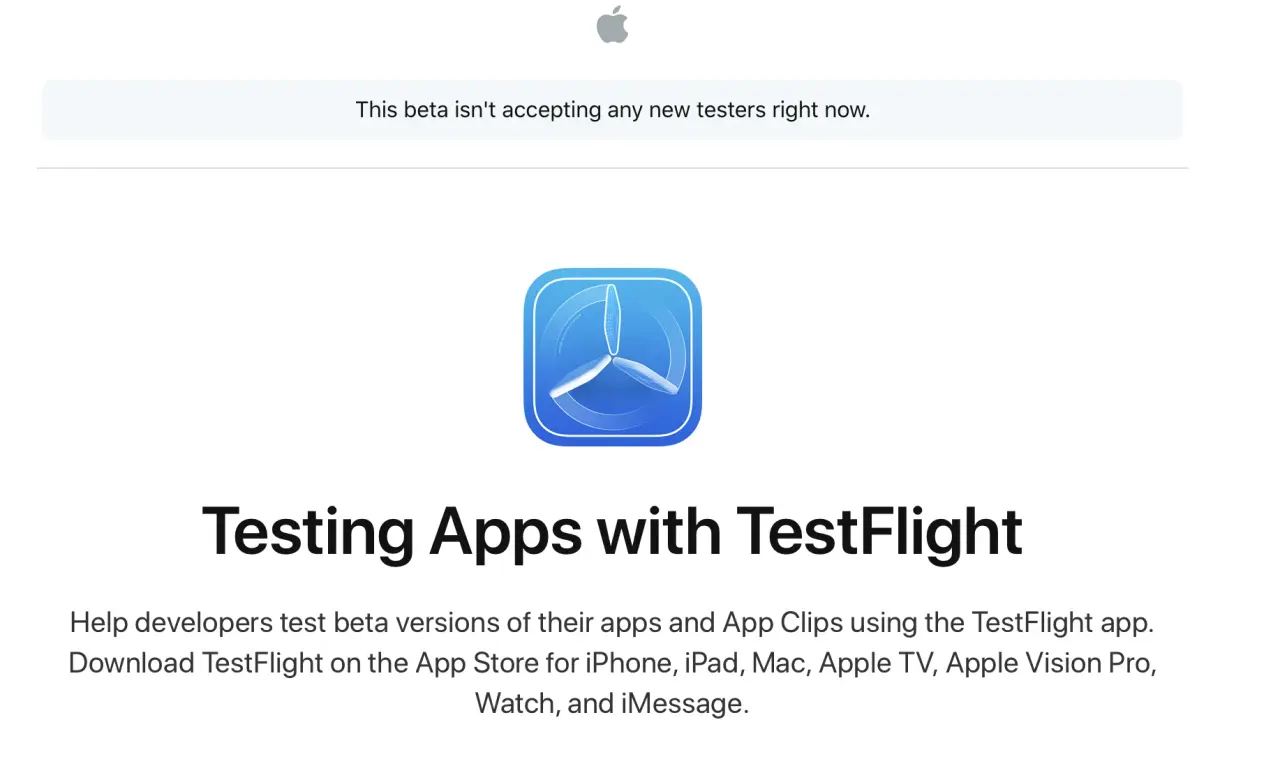
The most common frustration among iOS testers is tapping a link only to see: "This beta is full."
Why does this happen? Apple imposes a strict limit of 10,000 external testers per TestFlight app. High-profile applications like WhatsApp, Discord, or viral games hit this ceiling rapidly.
How to get in when a beta is full:
- Inactive Tester Churn: Developers regularly purge inactive testers who haven't opened the app in 30 days. When this happens, slots open up randomly throughout the day.
- CodeWing Slot Alerts: On any full app on CodeWing, tap "Get Slot Alerts". Our automated background daemons ping Apple's servers continuously and alert you via web push the instant a spot frees up.
- Join the Official Telegram Channel: Subscribe to @testflight_link on Telegram for real-time broadcasts of newly opened TestFlight slots.
Step 5: Testing Guidelines, Free Sandbox Purchases & Feedback
Being a beta tester comes with exciting perks and simple best practices:
- 100% Free Sandbox In-App Purchases: Any pro upgrades, subscriptions, or digital items inside a TestFlight build are simulated in Apple's sandbox environment at $0.00. Your credit card is never charged.
- 90-Day Build Lifespans: Apple TestFlight builds remain active for 90 days. Developers periodically push updates that reset this clock. All your local data and progress are preserved across updates.
- Reporting Bugs & Sending Feedback: If the app crashes or you discover a glitch, take a screenshot! iOS will automatically display an option to "Share Beta Feedback". You can attach notes and send them straight to the engineering team.
- Switching Back to App Store: You can leave a beta at any time by opening TestFlight, selecting the app, and tapping "Stop Testing". You can then redownload the public App Store version with zero data loss.
Frequently Asked Questions (FAQ)
Do I need an invitation code to install TestFlight apps on CodeWing?
No! You do not need a private alphanumeric invitation code or developer email. All apps indexed on CodeWing use Apple's public join links. When you tap "Join Beta", TestFlight opens and enrolls your Apple Account automatically.
Is downloading TestFlight apps safe for my device?
Yes. TestFlight is Apple's proprietary infrastructure. Every build submitted to TestFlight must undergo automated security scans and basic App Review by Apple before public links can be generated. TestFlight apps run within Apple's strict sandboxed environment and cannot compromise device security.
Are TestFlight apps free to test?
Yes, joining public TestFlight betas is completely free. In addition, paid features and in-app purchases are simulated at $0.00 in Apple's sandbox, allowing you to test premium capabilities at no cost.
How can developers list their TestFlight app on CodeWing?
Indie creators and development teams can visit codewing.in/submit and paste their public TestFlight link. CodeWing automatically fetches App Store artwork, categories, and developer credentials within 60 seconds. Developers can also upgrade to Spotlight Boost for instant Telegram broadcast to 10,000+ active testers.