Safience TestFlight Beta
Getting Started with the Safience Beta


About Safience
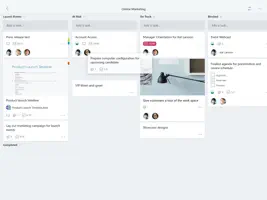
Safience is a web browser for iPad and iPhone, made for working in web apps such as a design tool, a whiteboard, a project board or a CMS. On iPad, sites load in their desktop versions, and trackpad pinches, scrolling and ⌘ shortcuts go to the page as on a Mac. On iPhone, Desktop View shows the same desktop versions. With iCloud sync on, your spaces, bookmarks and tabs show on your other iPads and iPhones, and a space's bookmarks and tabs sync with Chrome on your computer.
TRACKPAD AND KEYBOARD ON IPAD
- A trackpad pinch and two-finger scrolling go to the page, so a design canvas zooms at the pointer.
- ⌘ shortcuts go to the page, including undo, find, copy and each web app's own. Safience keeps only the ones every browser keeps, such as ⌘T, ⌘W and ⌘N, and puts its other shortcuts on Control-Option.
- ⌘-click opens a link in a new tab behind the one you're on, as in Safari, and ⇧⌘-click opens it in front.
- Pages' own cursors show, such as a design tool's pen and comment cursors.
ON IPHONE
- The bar is at the bottom of the screen, and sites load their mobile versions, as in Safari. Swipe up on the bar for your tabs as cards, with your pinned tabs in a dock.
- Desktop View, in the page's menu, lays out the page at the size of a 13-inch iPad Pro and turns the screen into a trackpad: one finger moves the cursor, a tap clicks, two fingers scroll. It shows hover styles, the page's cursors and a minimap of the whole page.
- On an iPhone Duo, Safience uses the phone layout when folded and the desktop version when unfolded.
TABS ON IPAD
- Tabs and the address share one row. Click the tab you're on to type a new address.
- Split view puts two tabs side by side in one window. Drag the divider to give one side more room.
- Pinned tabs show the web apps you use every day as icons at the front of the row.
- The tab bar and the address bar take the colour along the top of each page.
A SPACE FOR EVERY CLIENT
- Each space has its own sign-ins and site data, so you can stay signed in to two accounts of the same web app at once.
- Give each space a colour and an icon. The colour fills the space's button, so you can see which space you're in.
- Each space has its own bookmarks and folders, shown as a grid of site icons on a new tab.
- Import bookmarks from Chrome, Firefox or Safari.
SYNC WITH ICLOUD AND CHROME
- Turn on iCloud sync in Settings, and your spaces, their bookmarks and pinned tabs show on every iPad and iPhone signed in to your Apple Account. Sync uses your private iCloud and no other server.
- Each device's open tabs show on the others, in the tab overview and the command palette.
- Safience Sync for Chrome pairs a Chrome profile with a space. The profile's bookmarks bar and pinned tabs sync both ways, and each side shows the other's open tabs. It works in Chrome, Edge, Brave and other Chromium browsers.
- Sign-ins, cookies and site data stay on each device.
YOUR DEFAULT BROWSER
- Make Safience your default browser on iPad and iPhone, and links from other apps open in a new tab.
- Sites can use passkeys, and Share Page has Add to Home Screen.
- Choose from eight app icons in Settings.
COMMAND PALETTE AND WINDOWS
- The command palette (Control-Option-K) finds the tabs in every space, and your spaces, bookmarks and commands.
- On iPad, open several Safience windows side by side with Stage Manager.
PRIVACY AND MEMORY
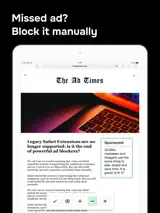
- Safience blocks ads and trackers before they load, with WebKit's content blocker and the EasyList and EasyPrivacy lists. It's on by default; allow a site from its menu, or turn it off everywhere in Settings.
- To save memory, Safience unloads heavy tabs you aren't using and loads them again when you open them.
- Safience collects no data and doesn't track you.