Listing your TestFlight beta on CodeWing is free and takes a few minutes: paste your public TestFlight link, check the details we read from Apple, and submit. Once it is live you can claim it as its developer to get a Verified developer badge, edit the page and see how many people view it and tap Join. This guide walks through every step with screenshots.
The short version
- Go to codewing.app/submit and paste your public TestFlight invite link.
- Pick I made this app, check the categories and description, and tap Submit beta.
- Open the claim page for your listing and add the code we give you to your TestFlight Beta App Description.
- Tap Check now. You are verified, and your listing shows the Verified developer badge.
In this guide
- Before you start
- Part 1: List your beta (steps 1 to 5)
- What happens after you submit
- Part 2: Claim your app (steps 6 to 9)
- Part 3: Manage your listing
- If CodeWing shows details from the wrong app
- Troubleshooting
- Frequently asked questions
The screenshots use an example app called Pocket Planner, so no real developer's account is shown.
Before you start
You need three things:
- A public TestFlight invite link for your app. It looks like
https://testflight.apple.com/join/AbC123xy. In App Store Connect you create it under your app's TestFlight tab by adding a public link to a group of external testers. Only public links can be listed; private invitations sent to individual email addresses cannot. - A CodeWing account. You can look at the form without one, but submitting asks you to sign in. A normal CodeWing account is enough: there is no separate developer account.
- Access to App Store Connect, if you want to claim the listing. Claiming proves the app is yours, and the main method is a short code you paste into your TestFlight description.
Listing a beta is free, whether you made the app or just found it. Developers do not pay to be listed or to be verified.
Part 1: List your TestFlight beta
Step 1: Open the submit page and paste your link
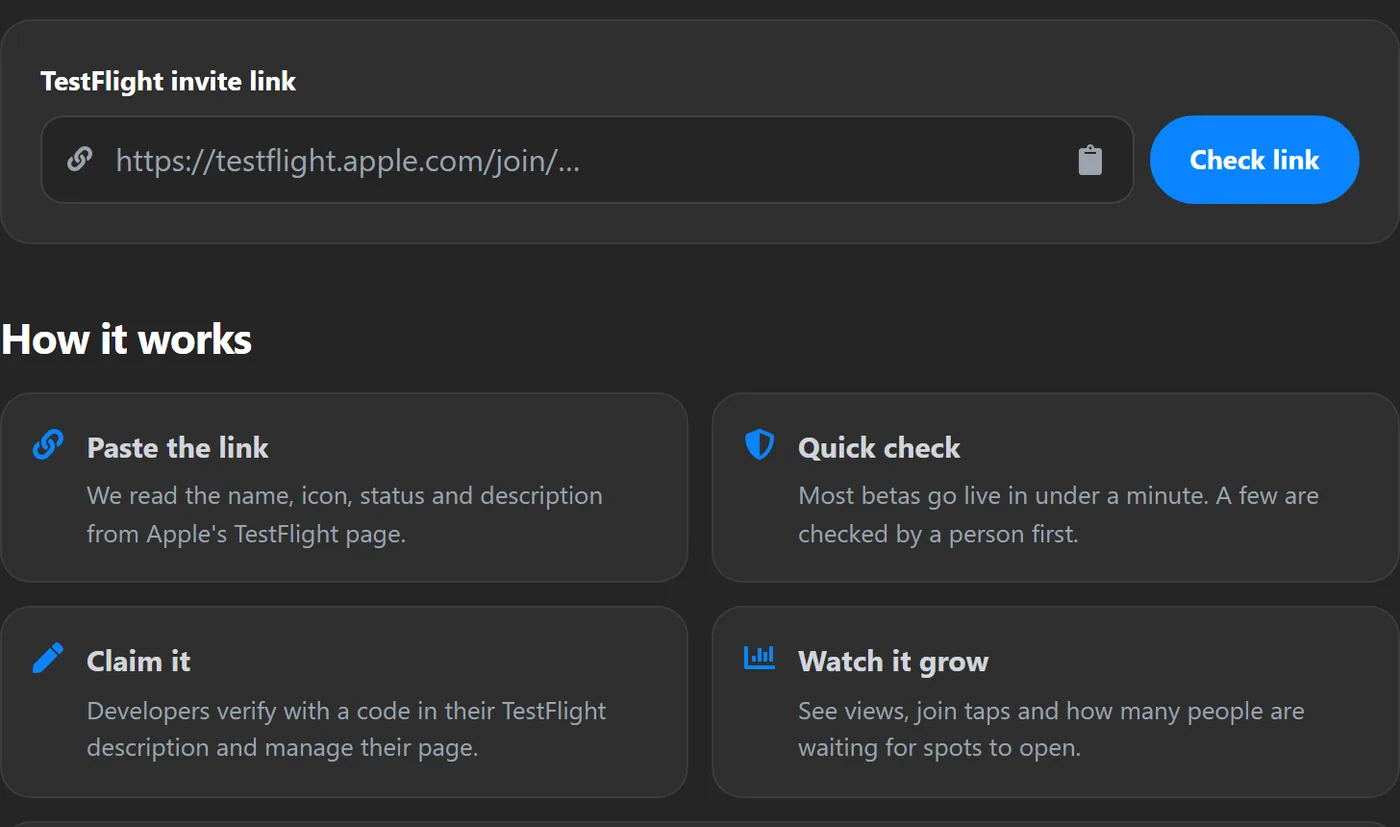
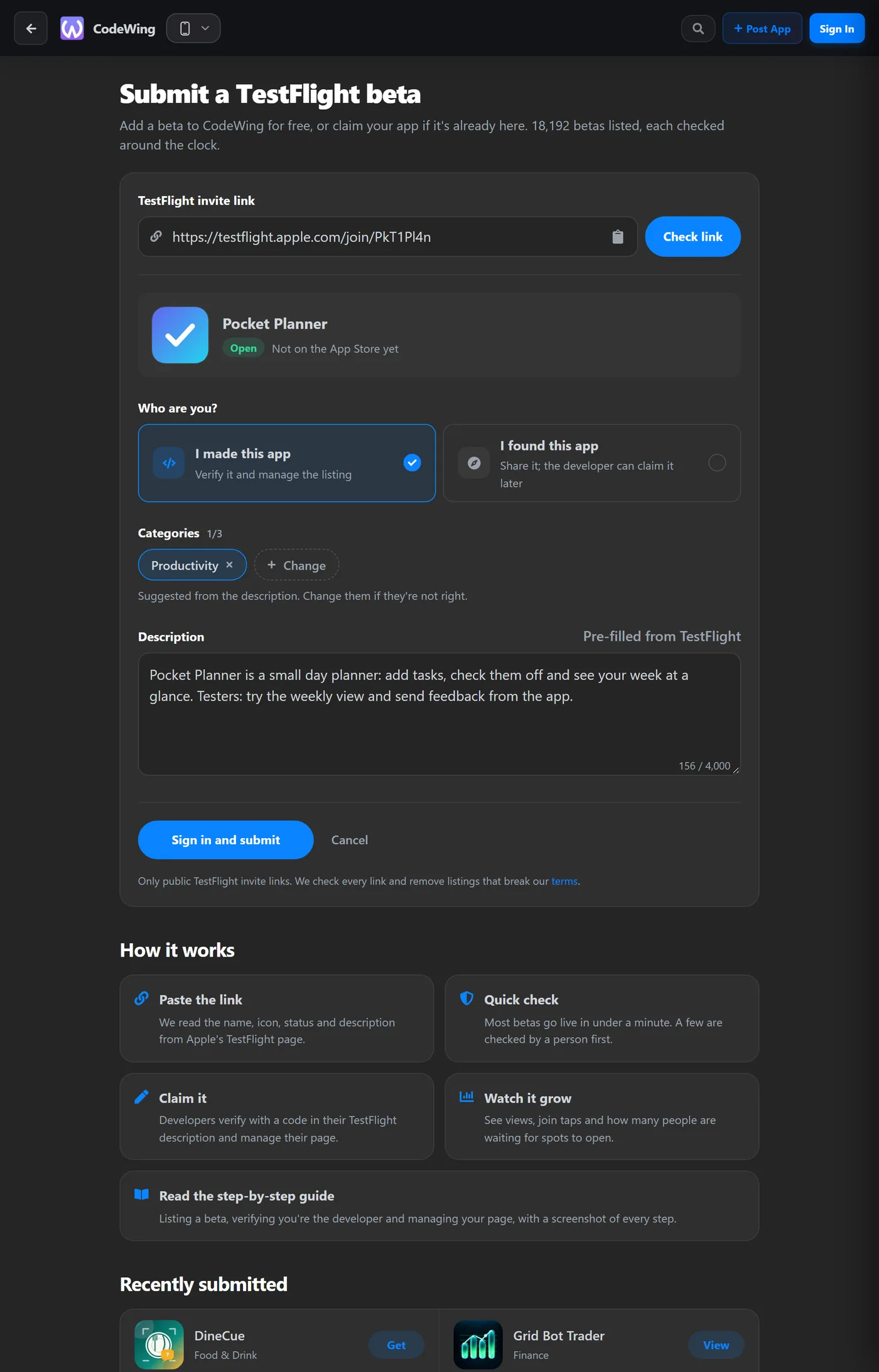
Go to codewing.app/submit. One box does the whole job: paste your TestFlight invite link into it (the clipboard button next to the box pastes for you) and tap Check link.
If the link is already on CodeWing, the page says so and offers Claim this app instead, so you never create a duplicate. Skip ahead to Part 2.
Step 2: Check what we read from Apple's page
CodeWing reads the name, icon, status and description from your public TestFlight page and shows them back to you. You will see the app's name and icon, whether it is currently Open or Full, and the description testers see in TestFlight. If the app is also on the App Store, we link to it.
If Apple's page cannot be read at that moment, you can still continue, but a person will look at the submission before it goes live.
Step 3: Choose who you are
Under Who are you? choose one:
- I made this app to verify it and manage the listing afterwards.
- I found this app to share a beta you came across. The developer can claim the listing later.
Step 4: Review the categories and the description
CodeWing fills in the categories (up to three) from the App Store when the app is there, or suggests them from the description when it is not. Change them if they are not right: the first one is the main category. The description is pre-filled from TestFlight and can be up to 4,000 characters. This is the text people read before they decide to join, so say what the app does and what you want testers to try.
Step 5: Submit
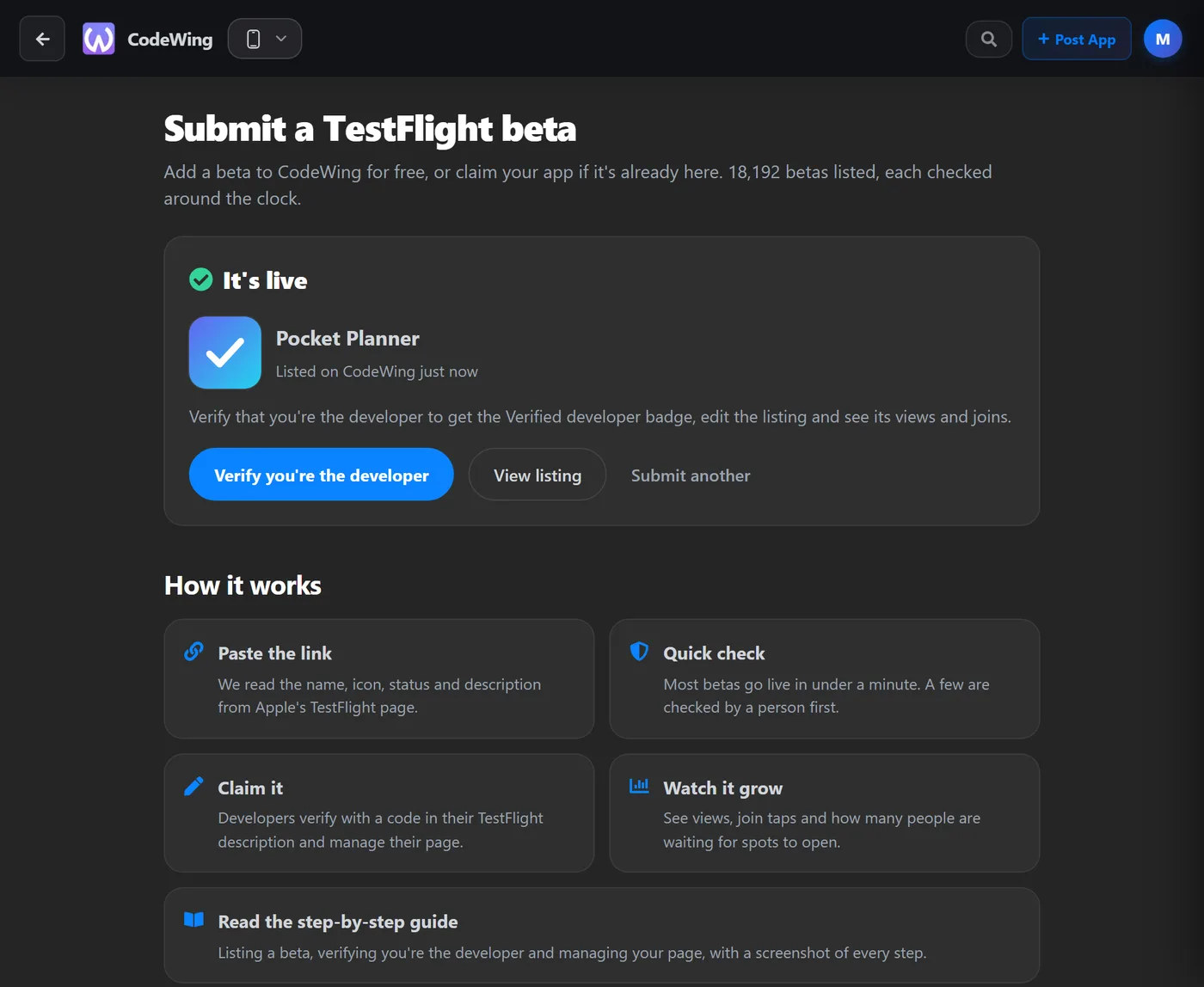
Tap Submit beta. If you are not signed in yet, the button reads Sign in and submit and opens the sign-in window first. Most submissions go live in under a minute, and the page says It's live.
What happens after you submit
There are three possible outcomes, and you get an email whichever one it is.
- Live right away. This is the usual case. Your listing has its own page, and the page shows whether your beta is open or full, so people know before they tap.
- In review. Some submissions are held for a quick check by a person, for example when Apple's page could not be read or one account submits many betas in a day. These are usually decided within a day. The page lists the reasons it was held, and the submission shows in your account.
- Not listed. The link does not work, the app cannot be listed (for example after a takedown request), or it is an internal or test build that is not meant for the public. The page tells you why, and you can try another link.
Part 2: Claim your app as its developer
Anyone can list a beta, so the Verified developer badge is how visitors know the page is run by the people who made the app. Claiming is also what unlocks editing and the numbers. Each claim is per account, so every member of your team can claim the listing with their own account.
Step 6: Open the claim page and sign in
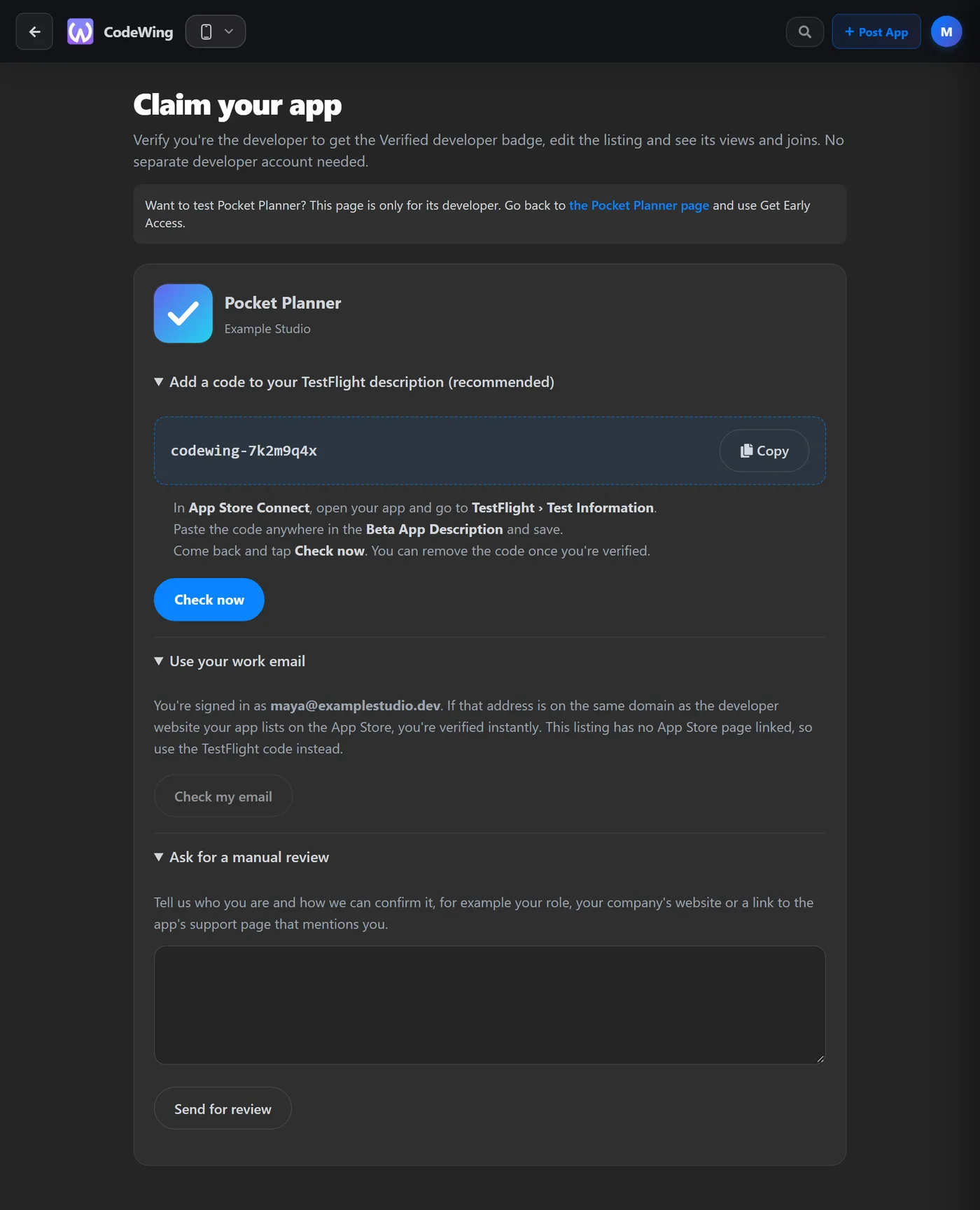
Tap Verify you're the developer on the confirmation, or open codewing.app/developer/your-app (the same name as your listing's address). If you are signed out, the page asks you to sign in with the account you want to manage the app with.
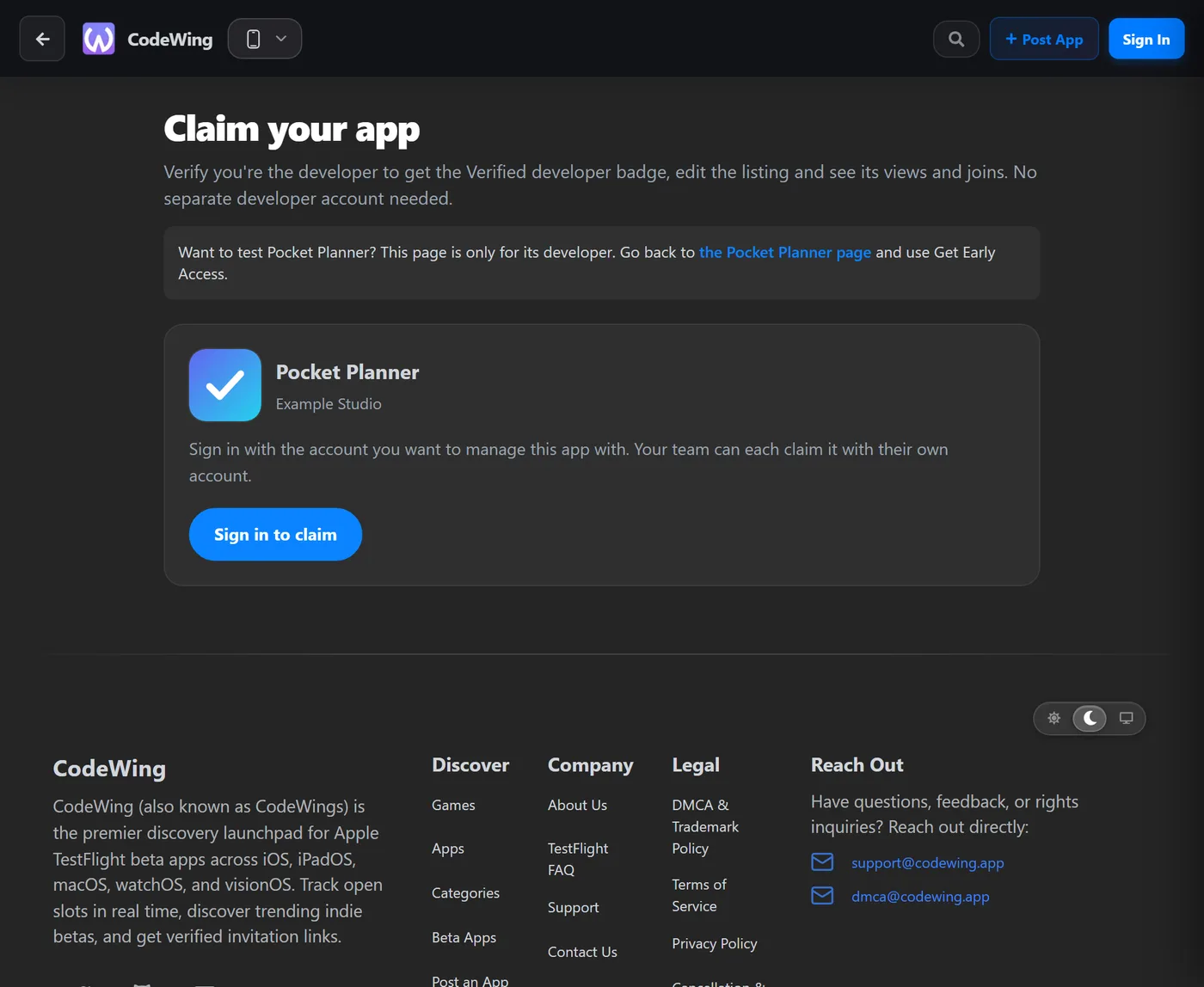
This page is only for the app's developer. If you came here to test the app, go back to its listing and use Get Early Access instead.
Step 7: Add the code to your TestFlight description (recommended)
After you sign in, CodeWing gives you a short code that looks like codewing-7k2m9q4x. To verify:
- Open App Store Connect, then your app, then TestFlight › Test Information.
- Paste the code anywhere in the Beta App Description and save.
- Come back to the claim page and tap Check now.
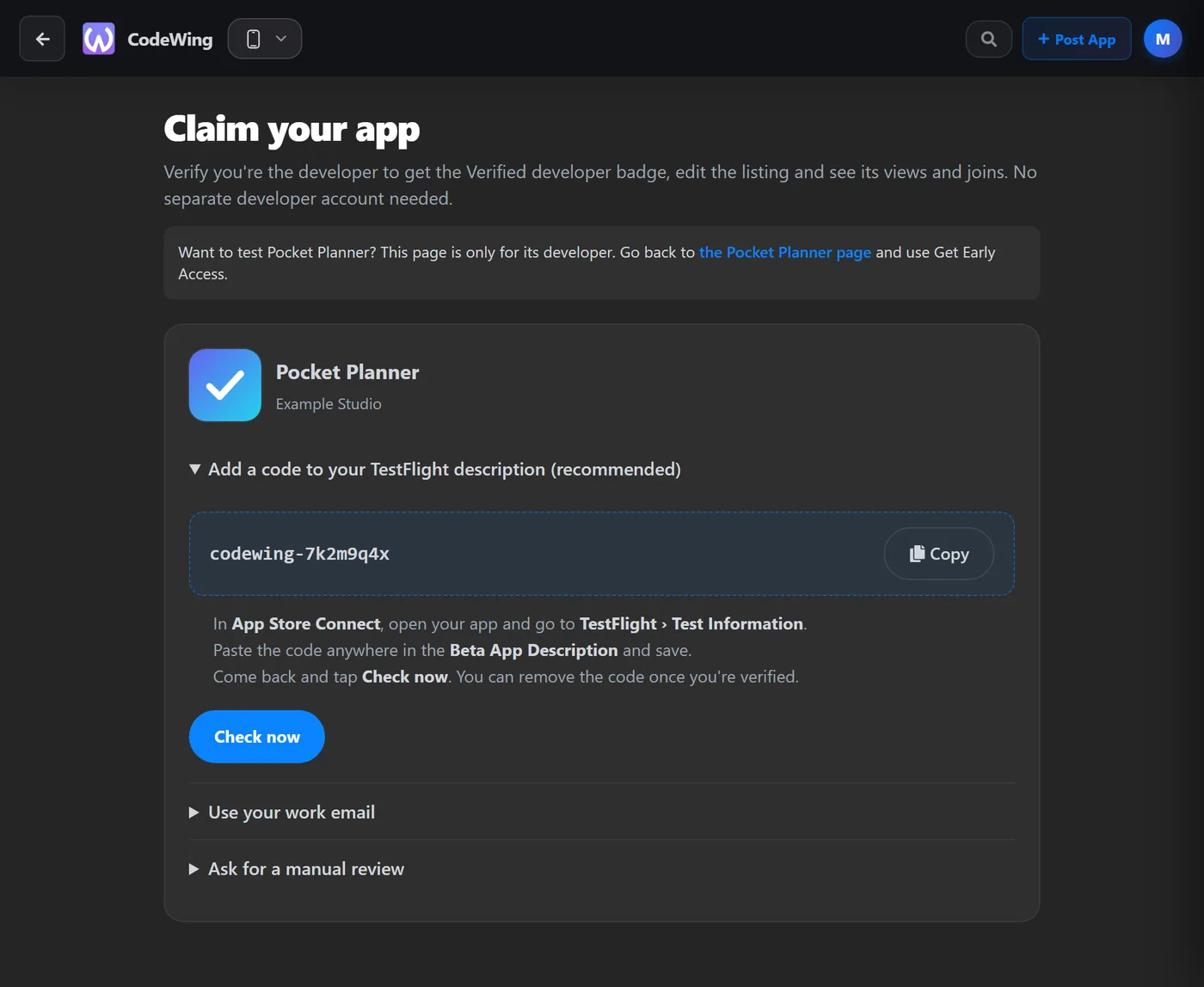
CodeWing checks your public TestFlight page for the code. Only someone who can edit the app in App Store Connect can put it there, which is why this proves you are the developer. Once you are verified you can remove the code from the description.
Step 8: Or use another way to verify
The claim page offers three ways, and you only need one:
- The TestFlight code (above). It works for every listing, including apps that are not on the App Store yet.
- Your work email. If the email address you signed in with is on the same domain as the developer website your app lists on the App Store, you are verified instantly. This needs the listing to have an App Store page linked, so it is not available for betas that are not on the App Store.
- A manual review. Tell us who you are and how we can confirm it, for example your role, your company's website or a support page that mentions you. A person decides, usually within a day, and you get an email.
Step 9: You are verified
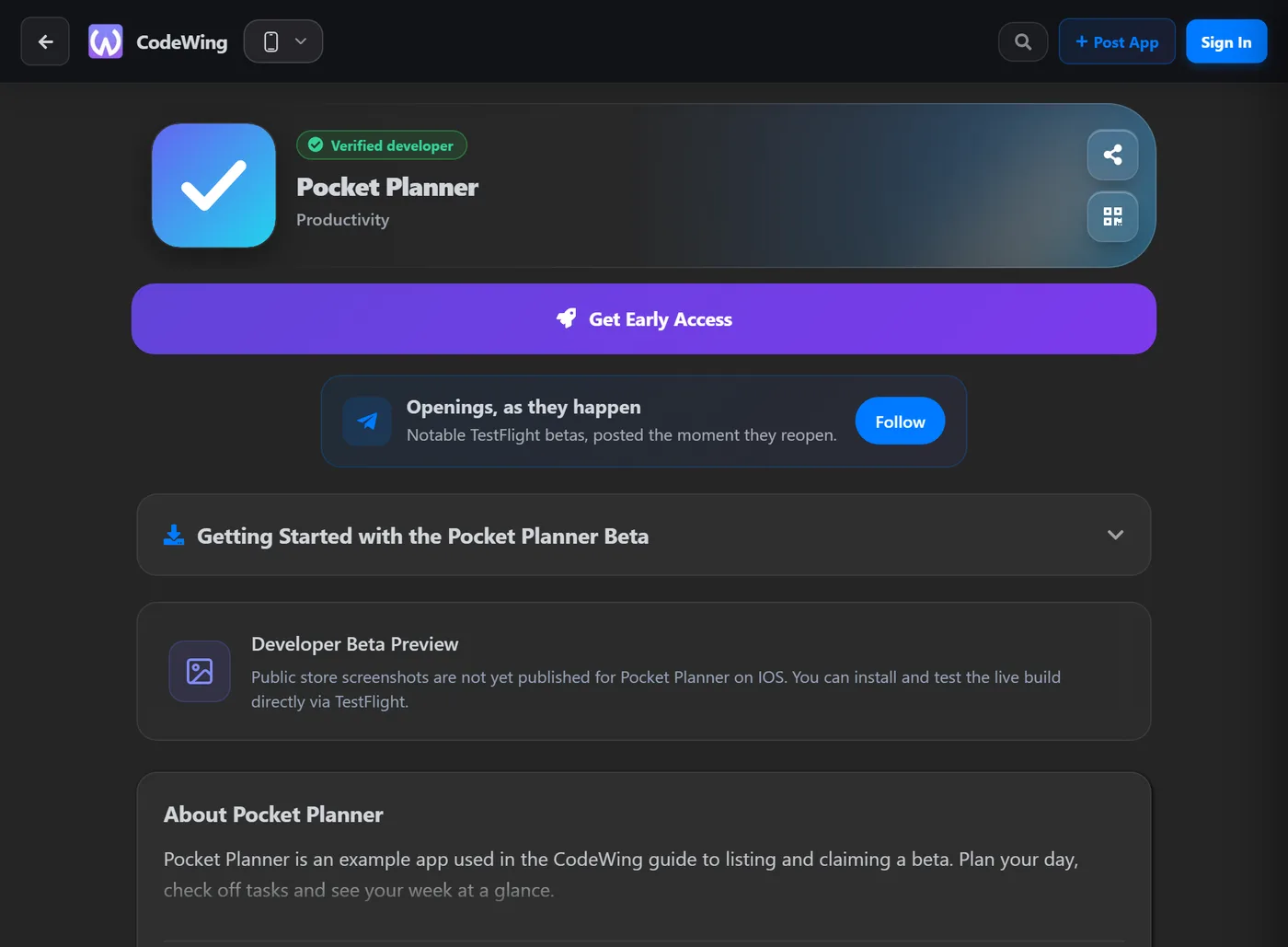
The claim page changes to Manage your listing with a Verified developer badge. The same badge now shows on your app's page for everyone, above the app's name and next to the developer name.
Part 3: Manage your listing
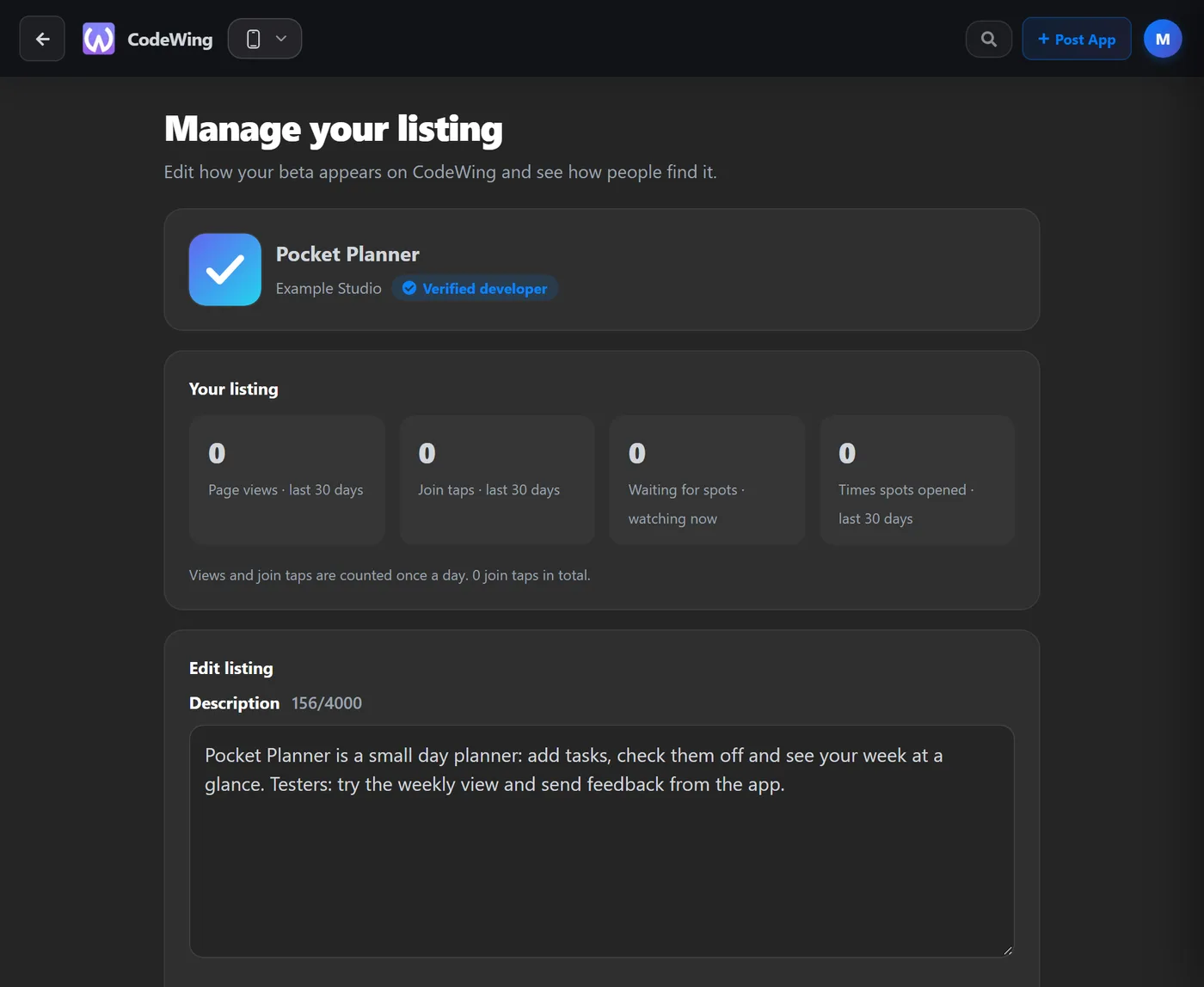
Your management page has two parts. The top shows how people find your beta over the last 30 days: page views, join taps, how many people are waiting for a spot, and how many times spots opened. A brand-new listing starts at zero, as in the screenshot, and the numbers fill in as people visit.
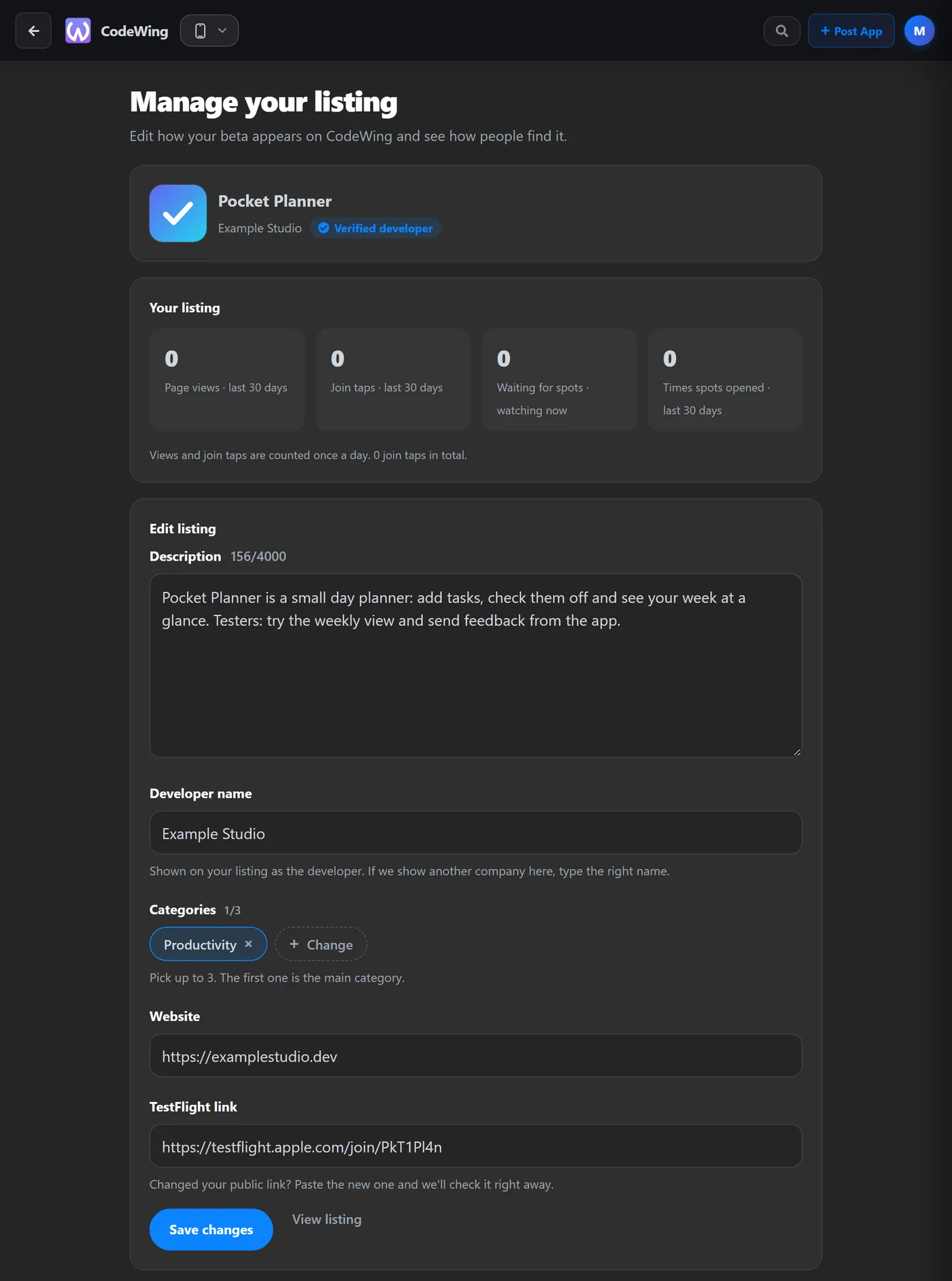
Below the numbers is the editor. A verified developer can change:
- the description (20 to 4,000 characters),
- the developer name shown on the page,
- up to three categories,
- the website, and
- the TestFlight link. If you create a new public link, paste it here and CodeWing checks it right away.
If you have several apps verified with the same account, each app's page lists the others under "More from" your name, so testers can find them. When you type a developer name, tick Use this name on my other verified apps to put it on all of them at once.
Tip for a better listing: write the description for a tester, not for the App Store. Say what the app is, what changed in this build and what feedback you want. Pick the categories people would actually browse, and keep your TestFlight link current: if you create a new public link, update it in the editor so the Join button keeps working.
If CodeWing shows details from the wrong app
Some betas share a name with a different App Store app, so a listing can pick up another app's rating, screenshots or developer name. If that happened to yours, a verified developer can fix it: on the management page, choose This is not my app: remove App Store details. The other app's link, rating, screenshots and developer name are removed. Your own description, categories and the developer name you typed stay. If the developer name is simply missing or wrong, type the right one in the editor.
Troubleshooting
- "Check now" does not find the code. Make sure you saved the Beta App Description in App Store Connect, then open your public TestFlight link in a browser and look for the code in the description. If it is not there yet, Apple has not published the change: wait a little and try again.
- The link is rejected. Use a public invite link in the form
testflight.apple.com/join/.... Private invitations, internal builds and expired links cannot be listed. - "Already on CodeWing". Someone has listed your app already. That is fine: claim it. If it already has a verified developer, your team can still verify with their own accounts.
- Email verification is greyed out. The listing has no App Store page linked, or its App Store details belong to a different app. Use the TestFlight code instead.
- Held for review. You will get an email when a person decides, usually within a day. You do not need to submit again.
Frequently asked questions
Is it free to list a TestFlight beta on CodeWing?
Yes. Listing a beta is free, and so is claiming it. There is no paid listing plan.
How long does it take for my beta to go live?
Most submissions go live in under a minute. Some are held for a quick check by a person and are usually decided within a day. You get an email either way.
Can I list a beta I did not make?
Yes. Choose I found this app. The developer can claim the listing later.
What does a Verified developer badge mean?
It means the person managing the listing proved they control the app, by adding a code to its TestFlight description, by using an email address on the app's own website domain, or through a manual review.
Do I need a separate developer account?
No. You sign in with a normal CodeWing account, and your teammates can each claim the same listing with their own.
What can I change after I am verified?
The description, the developer name, up to three categories, the website and the TestFlight link. You can also see page views, join taps and how many people are waiting for a spot.
Why would a submission be rejected?
The TestFlight link does not work, the app cannot be listed (for example after a takedown request), or it is an internal or test build that is not meant for the public.
Can I promote my beta to get more testers?
Yes. Listing stays free, and you can also sponsor your beta: it then appears as a labelled Ad card in Hot This Week on the home page, on its category page or on the list of open betas. Tell us what you need on the Advertise page and we reply by email.
My beta is full. Should I still list it?
Yes. CodeWing shows whether a beta is open or full and keeps checking, so people can see when a spot opens. If you are new to TestFlight yourself, read how to install TestFlight and join beta apps, and for full betas what to do when a TestFlight beta is full.
Ready to list your beta?
Paste your public TestFlight link at codewing.app/submit. It is free, and you can verify yourself as the developer in a few minutes.